
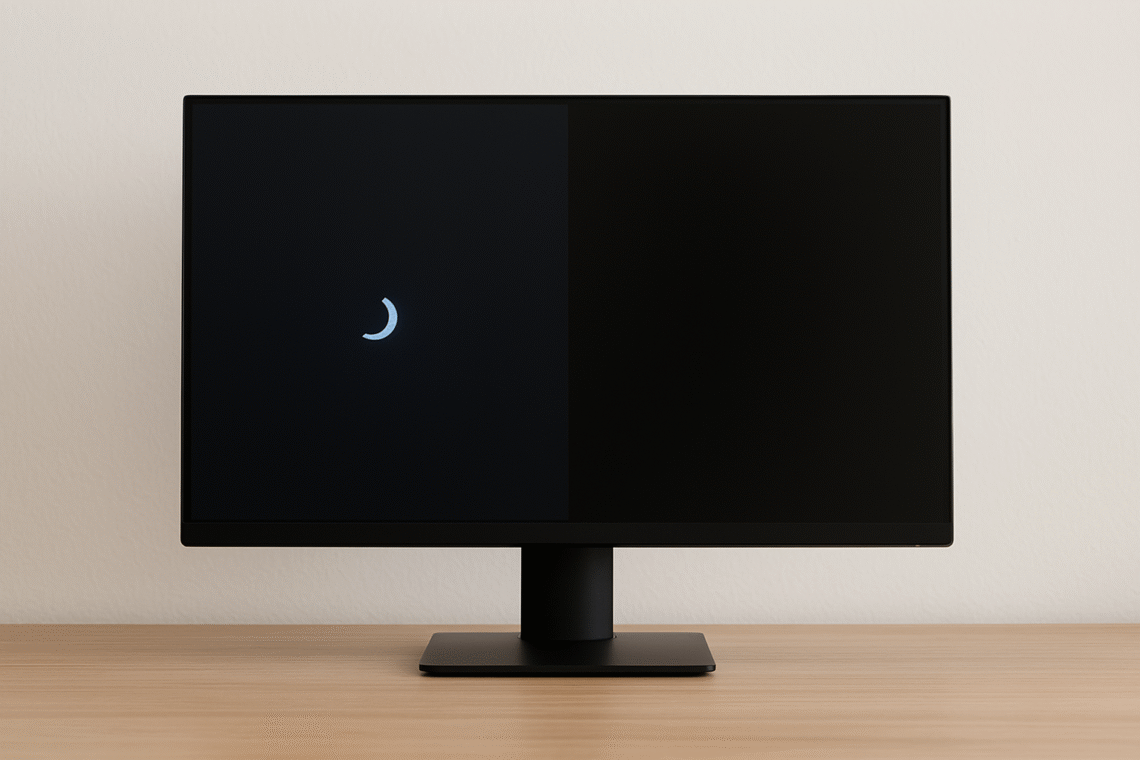
A computer waking itself from sleep mode only to show a black screen is a frustrating issue faced by many Windows 10 and Windows 11 users. It often occurs due to misconfigured power settings, outdated graphics drivers, or hardware wake triggers such as network adapters and USB devices. In some cases, the system resumes from sleep but fails to properly initialize the display, leaving the user with a blank screen.
This guide explains why your PC may wake unexpectedly, why the screen stays black afterward, and what steps you can take to resolve the problem. By understanding the root causes ranging from wake timers and Fast Startup conflicts to monitor detection errors—you can restore smooth wake functionality and prevent future interruptions.
Why Does This Happen?
- Automatic Wake Events: Windows allows scheduled tasks, updates, or devices (like network adapters or USB peripherals) to wake the PC.
- Graphics Driver Issues: Outdated or corrupted GPU drivers often cause black screens after sleep.
- Power Settings Misconfiguration: Incorrect sleep/hibernate settings can prevent proper wake-up.
- Monitor/Display Problems: Sometimes the monitor fails to detect the wake signal.
- Hardware Conflicts: Faulty RAM, SSD, or BIOS settings may trigger wake failures.
Common Scenarios and Keywords
- Black screen after sleep Windows 11 – Often fixed by adjusting hibernation and updating GPU drivers.
- Laptop screen not turning on after sleep Windows 11 – Linked to display driver issues.
- HP laptop black screen after sleep mode Windows 11 – Requires BIOS updates and disabling hybrid sleep.
- Windows 11 black screen after sleep Reddit – Many users report success by disabling “Fast Startup.”
- The computer will not wake up from sleep mode Windows 10 – Often solved by disabling wake timers.
- Monitor won’t wake up from sleep Windows 11 – Check if the monitor is allowed to wake the PC in Device Manager.
- Black screen after sleep Windows 10 – Update drivers and reset power plans.
Step-by-Step Fixes
- Adjust Power Settings
- Go to Control Panel > Power Options > Advanced Settings.
- Disable wake timers.
- Turn off Fast Startup under “Choose what the power buttons do.”
- Update Graphics Drivers
- Use Device Manager or manufacturer tools (NVIDIA GeForce Experience, AMD Adrenalin, Intel Driver & Support Assistant).
- Outdated drivers are the most common cause of black screens after sleep.
- Check Monitor Wake Permissions
- In Device Manager, expand “Keyboards,” “Mice,” and “Network Adapters.”
- Right-click each device → Properties > Power Management → uncheck “Allow this device to wake the computer.”
- Disable Hybrid Sleep
- In Power Options, set Sleep > Allow hybrid sleep to “Off.”
- Hybrid sleep can cause wake failures on laptops.
- BIOS/UEFI Updates
- Check your laptop or motherboard manufacturer’s site for BIOS updates.
- Enable Wake on Keyboard/Mouse if needed.
- Hardware Checks
- Test RAM and SSD health.
- Disconnect external devices to rule out conflicts.
Risks and Considerations
- Data Loss: If the system fails to wake properly, unsaved work may be lost.
- Battery Drain (Laptops): Auto-wake events can drain battery overnight.
- Security Concerns: PCs working automatically may expose data if left unattended.
FAQs
Q1. Why does my computer wake up by itself after sleep?
Because of scheduled tasks, Windows updates, or devices allowed to wake the PC.
Q2. Why is my screen black when I wake up from sleep?
Usually due to GPU driver issues or misconfigured power settings.
Q3. How do I stop my screen from going black after inactivity?
Change sleep/hibernate settings in Power Options and update drivers.
Q4. How do I fix a laptop black screen after sleep mode?
Disable hybrid sleep, update BIOS, and check display drivers.
Q5. Does this affect Windows 10 and Windows 11 differently?
Yes. Windows 11 users often report issues with Fast Startup and hibernation, while Windows 10 users face wake timer conflicts.
Conclusion
If your computer wakes itself from sleep mode then black screens, the solution usually lies in power management adjustments, driver updates, and disabling wake triggers. For Windows 10/11 laptops and desktops, these fixes restore proper wake functionality and prevent frustrating black screen errors.
Trending searches in 2026 include: “Black screen after sleep Windows 11,” “Laptop screen not turning on after sleep Windows 11,” “HP laptop black screen after sleep mode Windows 11,” “Windows 11 black screen after sleep Reddit,” “Computer will not wake up from sleep mode Windows 10,” “Monitor won’t wake up from sleep Windows 11,” and “Black screen after sleep Windows 10.” These highlight the widespread nature of the issue and the demand for reliable fixes.
Explore smart living tips and stylish spaces at HomeDwellish